Cornerwitch Steam Deck & Proton Tips
Practical expectations for Deck and Linux players after Cornerwitch’s day-one Proton pass—without fake “verified Deck” badges.
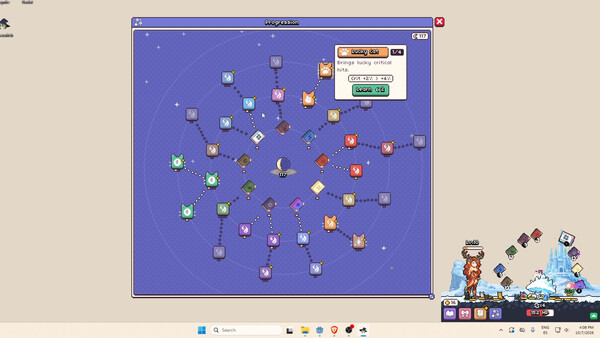
Cornerwitch is a cozy desktop-corner idler: click monsters for gold, level up, unlock cosmetics, study spells, recruit cats, fight bosses, complete studies, find rare creatures, and shrink into tiny idle mode. Many players will still ask whether that fantasy works on Steam Deck or other Linux / Proton setups. This Tools page sets honest expectations using verified store and patch facts—plus community caveats—without inventing an official Deck certification the store did not publish.
Cross-read System Requirements, Desktop Companion, Day One Patch, Launch Week, and the Tools Hub.
Store baseline: Windows-focused
The Steam listing for app 4443690 documents a Windows hardware baseline (Windows 7 64-bit class, roughly 2 GHz CPU, 2 GB RAM, OpenGL 3.3, about 200 MB storage). Controls emphasize mouse and touch options. That means:
- Windows desktop remains the documented comfort zone.
- Deck / Proton play is an enthusiast path, improved but not rewritten as a native Linux SKU in the verified materials.
- If something breaks on Deck, compare against a Windows install before assuming the whole game is soft-locked.
Always re-check the live Steam page for OS badges and Deck reports; storefront metadata can change after launch week.
What day one changed for Linux & Proton
On November 23, 2026, AramiGames shipped Patch notes: Day one, including better compatibility with Linux & Proton, alongside localization fixes, a window-snapping disable option, larger maximum size, multi-monitor placement fixes, and clearer UI visual cues. Rami thanked buyers and reviewers, reported no game-breaking bugs so far, and promised continued updates from feedback. Support: [email protected].
For Deck players, the actionable takeaway is simple: update before testing. Older demo-era or pre-patch builds are the wrong baseline for bug reports.
Community caveat: transparency flicker on Deck
Players have reported Steam Deck transparency flicker, with notes that only the ground looks normal while other layers flicker. That is painful for a companion UI that relies on readable spells, studies, and visual cues—especially after demo feedback made skill clarity a selling point.
Mitigations to try (practical, not magical):
- Ensure the latest Steam build / day-one patch is installed.
- Experiment with Proton versions available in Steam’s compatibility tool dropdown.
- Increase window size or scaling so text survives flicker noise.
- Avoid relying on subtle translucent cues while flicker is active.
- Prefer opaque cosmetics temporarily if contrast collapses (Cosmetics).
- Capture a short video when reporting to [email protected] or Steam discussions.
This wiki will not invent a console cvar that “fixes Deck transparency.” Until an official note claims a fix, treat flicker as a known risk.
Community caveat: resize freeze until restart
Separate from Deck-specific flicker, players report that resizing can freeze the game until restart. On a handheld that encourages layout tinkering, that matters:
- Pick a size early; stop drag-resizing mid-session.
- Do not spam resize during boss attempts (Bosses).
- If frozen, restart; rely on Steam Cloud where available.
- Reproduce once cleanly, then report.
Day-one’s larger max size and snapping toggle reduce the need to fight the window manager—use those options instead of endless manual resizing (Desktop Companion).
Practical Deck session setup
Handheld mode
- Launch through Steam, confirm Proton compatibility settings if needed.
- Use touch-friendly habits; Cornerwitch advertises touch options, but verify hit targets after scaling.
- Keep sessions shorter when flicker is present—eye strain is real.
- Switch to tiny idle mode when you set the Deck aside mid-task (Idle Mode).
Docked / external display
- Day-one multi-monitor placement fixes help more on desktop Linux than on pure handheld, but docked Decks can still benefit from careful placement tests.
- Prefer a single stable display while learning studies and spell UI (Studies and Creatures, How to Play).
Companion fantasy check
Cornerwitch’s pitch is a desktop corner while you work. Deck is a fantastic couch device, but it is not the same as a secondary monitor corner. If your goal is true companion multitasking, a Windows laptop/desktop with the day-one window toolkit may match the fantasy better. Use Deck for focused cozy sessions; use desktop for “witch lives on my work screen” sessions.
Input, achievements, and Cloud
Store features include Steam Achievements (22 total), Steam Cloud, Family Sharing, save anytime, and play-at-your-own-pace / without-timed-input comfort. Those systems should follow your Steam account across devices when Cloud syncs cleanly—still force an exit/sync pause when switching Deck ↔ desktop to avoid stomping saves.
Achievement hunting tips stay the same as on desktop (Achievements): journey titles like First Spark through Moon-Crowned, Defeated bosses from Great Boar to Magma Demon, and no invented requirements.
Shopping footnotes for Deck buyers
Launch list price about $4.99 with introductory −40% toward $2.99 ending December 7, 2026 (verify live). Purchase UI may say Click and Spell. Early review scrape: Positive, 100% of 11 reviews—small sample. Official trailer lives on Steam (movie 257457729); this page sets no YouTube embed.
Troubleshooting order (do this before rage-refunding)
- Verify hardware expectations on System Requirements.
- Update to include Day One Patch Proton work.
- Retest flicker / freezes with a clean resize policy.
- Compare against Windows if you have access.
- Read Launch Week for current offer / sentiment context.
- Email [email protected] with OS, Deck model/SteamOS build, Proton version, and clips.
Related reading
- Tools Hub · Desktop Companion · System Requirements
- Day One Patch · Updates · Launch Week
- Getting Started · Idle Mode · Guides
Closing mindset
Steam Deck can run many Windows cozy games through Proton, and Cornerwitch’s day-one note explicitly invested in that path. Transparency flicker and resize freezes mean “playable for many” is not the same as “perfect companion on handheld.” Update first, resize less, report clearly, and keep a Windows corner as your reliability baseline when the witch needs to be readable for studies, spells, and boss nights.
Frequently Asked Questions
Quick answers for new and returning witches.
Is Cornerwitch officially a Steam Deck Verified title?
This wiki does not claim a Deck Verified badge. The store baseline documents Windows requirements; day one improved Linux/Proton compatibility for players who run outside that baseline.
What Deck-specific issue should I know about?
Community reports describe transparency flicker where only the ground looks normal. Update the game, try Proton versions, and report with video if it persists.
Did the day-one patch help Linux players?
Yes. The official day-one notes list better Linux and Proton compatibility among other QoL fixes. Details are on the Day One Patch page.
Should I resize the window a lot on Deck?
Avoid resize spam. Players report freezes until restart after resizing. Pick a readable size and leave it for the session.
Where do I go for desktop companion layout tips?
Use the Desktop Companion page for snapping, multi-monitor placement, and idle-mode workflow, and System Requirements for the Windows hardware baseline.